The 10-Point Email Client Compatibility Check Every HTML Email Should Pass
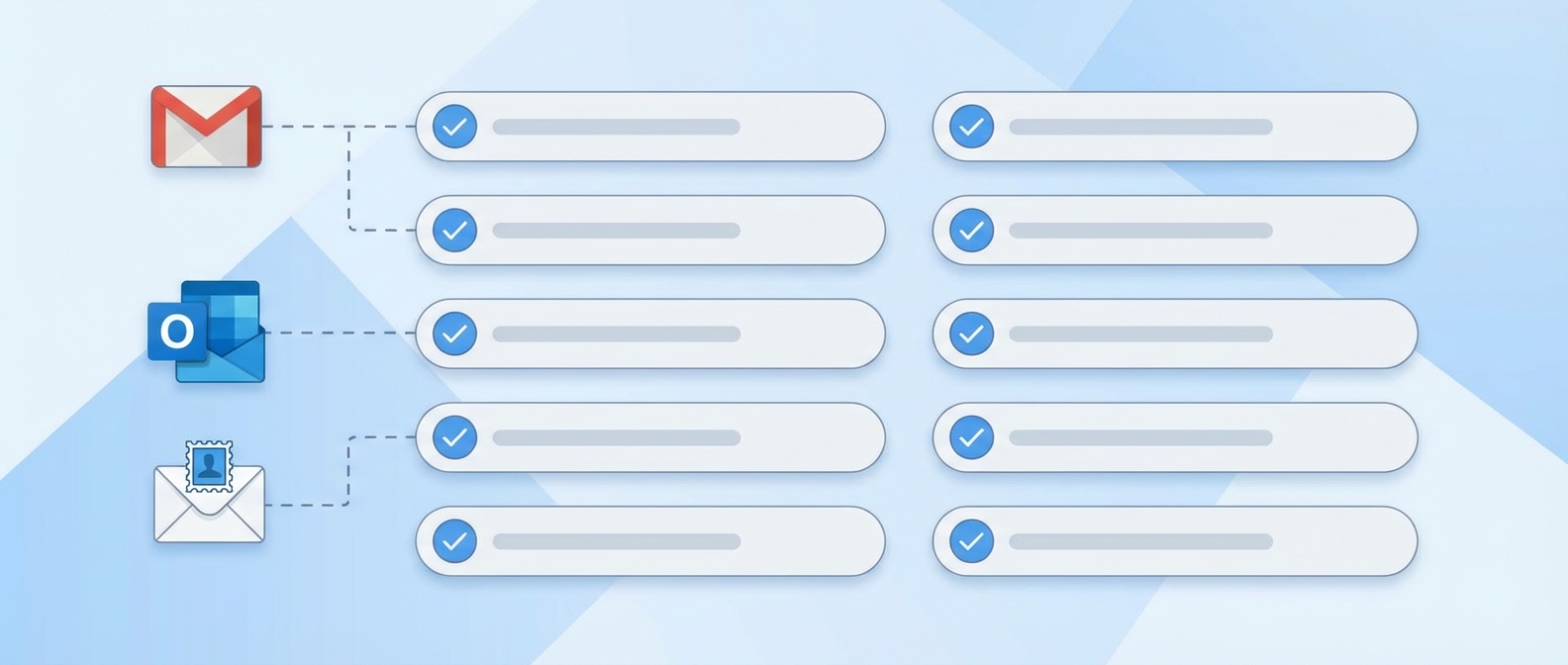
HTML email has never followed the same rules as the web. Here are the 10 checks EmailBits runs on every template — and why each one matters for Outlook, Gmail, and Apple Mail.
Posted by
 Cory Trimm
Related reading
Email Components: Build Better Emails Faster
What email components are, why modular email design saves time, and how the EmailBits free component library works. With real examples of reusable email sections.
Welcome Email Templates: Examples & Best Practices
Free welcome email templates for SaaS, e-commerce, and newsletters. Plus best practices for subject lines, timing, and what every welcome email needs to include.
E-commerce Email Templates: Free Examples for Every Flow
Free HTML email templates for e-commerce — cart abandonment, order confirmations, shipping updates, win-back campaigns, and promotional emails. Copy-paste ready.
Why Email Rendering Is So Much Harder Than Web Rendering
When you write code for the web, you write it once and it runs in Chromium, Firefox, or Safari — all of which follow the same W3C standards and ship regular updates. Email is nothing like that.
Gmail's web interface strips CSS properties it doesn't recognize. Outlook 2007 through 2021 renders HTML using the same engine as Microsoft Word — not a browser engine. Apple Mail is generous with CSS support, but it accounts for nearly 58% of all email opens (Litmus, 2023), meaning a rendering choice that looks fine in Apple Mail can mask a broken experience for the other 42% of your list.
This fragmentation is why every EmailBits template is validated against a 10-point compatibility checklist before it reaches the library. Below is every check, what it catches, and which clients are affected. If you're building your own HTML email, use this as your QA checklist.
Check 1: No Flexbox
CSS Flexbox is everywhere on the web, but it is completely unsupported in Outlook 2007 through Outlook 2021 on Windows. Outlook uses Microsoft Word's rendering engine — not a browser — and Word has never implemented a CSS layout model beyond basic block and inline flow.
When Outlook encounters display: flex on a container, it ignores the property entirely. Child elements collapse, overflow, or stack in unexpected ways. A three-column layout built with flex will render as a vertical stack of full-width blocks.
The fix is to use table-based layouts. HTML tables are the only layout primitive with near-universal support across every email client. EmailBits templates use tables internally, even when the output looks like a modern grid design.
Affected clients: Outlook 2007, 2010, 2013, 2016, 2019, 2021 (Windows). Source: Can I Email.
Check 2: No CSS Grid
CSS Grid shares the same problem as Flexbox in Outlook. The Word rendering engine does not support it, and Gmail's web app strips many grid properties as well. Grid-based layouts either collapse completely or produce unpredictable results depending on how the client handles unknown CSS.
The same table-based workaround applies. If you need a multi-column layout, use a <table> with <td> cells, not a CSS grid container. It feels like going back in time, but it works in every inbox.
Affected clients: Outlook 2007–2021, Gmail web app. Source: Can I Email.
Check 3: No <script> Tags
JavaScript does not exist in email. Every major email client — Gmail, Outlook, Apple Mail, Yahoo Mail, and all others — strips <script> tags before rendering. This is a deliberate security measure and it is not configurable.
Any interactivity in your email must be achieved with CSS alone — hover states, checkbox hacks, or the :target pseudo-class. Even then, CSS-only interactivity is only reliable in a small subset of clients. If something is important enough to require a click, link it to a web page.
Affected clients: All email clients. Source: Litmus Email Design Reference.
Check 4: No External Stylesheets
On the web, you link a stylesheet with <link rel="stylesheet" href="...">. In email, that tag is removed by Gmail, Yahoo Mail, and Outlook.com before your message is ever displayed.
Styles in HTML email must either be inline (using the style attribute directly on each element) or placed inside a <style> block within the email's <head>. Even <style> blocks are partially supported — Gmail strips them in some contexts — which is why inline styles are the safest default for any CSS that must render everywhere.
Affected clients: Gmail, Yahoo Mail, Outlook.com. Source: Campaign Monitor CSS Guide.
Check 5: No Absolute or Fixed Positioning
position: absolute, position: fixed, and position: sticky are unreliable in Outlook and ignored entirely in Gmail. When Outlook encounters an absolutely positioned element, it may render it on top of other content, shift it to an unexpected location, or drop it altogether.
Since table-based layouts provide flow-based positioning by nature, there is rarely a legitimate reason to use absolute positioning in email. If you're overlaying text on an image, the VML background image technique is the correct approach for Outlook compatibility.
Affected clients: Outlook 2007–2021, Gmail web app. Source: Can I Email.
Check 6: No Inline SVG
SVG is the right format for icons and illustrations on the web. In email, it is a liability. Outlook 2007–2021 does not render inline SVG at all — the element is either ignored or displayed as a broken image placeholder.
The solution is to use rasterized images (PNG or WebP) hosted on a CDN for any graphic that must display universally. For icons, a 2x PNG retina image at the correct display size is the safest fallback. EmailBits templates avoid inline SVG entirely for this reason.
Affected clients: Outlook 2007–2021, Windows Mail. Source: Can I Email.
Check 7: No <video> or <audio>
HTML5 media elements are blocked or silently ignored by Gmail, Outlook, and Yahoo Mail. Apple Mail is the only major client that reliably plays video inline — and Apple Mail accounts for a large share of opens, but not all of them.
The widely accepted pattern for "video in email" is a static thumbnail image with a play-button overlay, linked to the hosted video. Every client shows the image; clients that support it can play inline. This delivers the visual intent without breaking the layout for the majority of recipients.
Affected clients: Gmail, Outlook, Yahoo Mail (and most non-Apple clients). Source: Litmus: Video in Email.
Check 8: @media Query Awareness
@media queries work in Apple Mail, iOS Mail, and most modern email clients — but Gmail's web app does not apply them. Any responsive breakpoints you define in a <style> block simply won't fire for Gmail web users.
This doesn't mean you should avoid media queries entirely. It means your base layout — the styles that apply without any breakpoint — must already be readable on a narrow viewport. Design mobile-first in the base layer, then use media queries to enhance for wider screens. That way, Gmail users always see a sensible layout even without the breakpoints firing.
Affected clients: Gmail web app. Source: Can I Email.
Check 9: Alt Text on Every Image
Outlook blocks external images by default for senders who are not in the recipient's safe senders list. When images are blocked, the only content visible in place of each image is its alt attribute. An email with a full-width hero image and no alt text shows a blank white rectangle at the top — not a great first impression.
Alt text also matters for accessibility. Screen readers announce alt text when navigating email. An empty or missing alt on a CTA button image means a screen reader user hears nothing when they reach the most important element in your email.
Every <img> element should have an alt attribute. For decorative images that carry no information, use alt="" — an explicit empty string tells screen readers to skip it, rather than reading out the file name.
Affected clients: Outlook (images blocked by default for external senders). Source: Litmus: Image Blocking in Email.
Check 10: Max-Width Constraint
Without a max-width, an HTML email rendered on a wide desktop monitor can stretch to fill the full window — sometimes 1,400px or wider. At that width, line lengths become unreadable and the proportions of the design break down entirely.
The standard safe width for HTML email is 600–700px. Most email clients and design systems converge on this range because it renders well on desktop, is wide enough for comfortable reading, and degrades gracefully to a narrower single-column layout on mobile.
The correct implementation is a centered wrapper with an inline max-width style — not a CSS class, since class-based styles may be stripped:
<table width="100%" cellpadding="0" cellspacing="0" border="0">
  <tr>
    <td align="center">
      <table width="600" style="max-width:600px;" ...>
        <!-- your email content -->
      </table>
    </td>
  </tr>
</table>
Affected clients: Wide-screen desktop clients (Outlook, Apple Mail, Thunderbird). Source: Email on Acid: Email Width Best Practices.
How EmailBits Runs These Checks Automatically
Every template in the EmailBits library is validated against all 10 of these checks before it is published. When you browse a template and see the HTML or JSX source, you can be confident it has already passed.
The same checker runs automatically when you generate a custom email using the AI generation tool on /dashboard/create. After generation completes, the review step shows you all 10 results — green for pass, with a severity badge for anything that needs attention — before you open the template in the editor. No surprises after sending.
- Breaking — issues that will visibly break the email in affected clients (flexbox, grid, scripts, external stylesheets).
- Caution — issues that may degrade the experience in specific clients but won't necessarily break it (SVG, video, positioning, missing alt text).
- Best Practice — informational notes that improve deliverability, accessibility, or rendering quality (@media queries, max-width).
The Bottom Line
Email rendering in 2026 is not meaningfully different from email rendering in 2016. The fragmentation between Outlook's Word engine, Gmail's aggressive CSS stripping, and Apple Mail's relative generosity is a structural problem with no near-term fix. The only reliable approach is to know the rules, follow them at the code level, and validate before you send.
Use this list as a pre-send checklist for any HTML email you write — whether it came from EmailBits or was hand-coded from scratch. The 10 checks above cover the vast majority of rendering failures seen across Litmus and Email on Acid test reports. Pass all 10 and your email has a very good chance of looking right in every inbox.