
Email Templates for HubSpot
Copy the HTML from any template and paste it into HubSpot's custom HTML email editor. 600+ free templates — professional designs ready for marketing emails, sales sequences, and nurture campaigns.
How to Use EmailBits Templates in HubSpot
Browse & Preview
Find a template in the free library. No account needed to preview.
Copy the HTML
Click the HTML tab and copy the full code. Plain, inline-styled HTML compatible with HubSpot's custom HTML editor.
Paste into HubSpot
In HubSpot, create an email → choose "Custom HTML" → paste the code. Then add HubSpot personalization tokens like {{ contact.firstname }}.
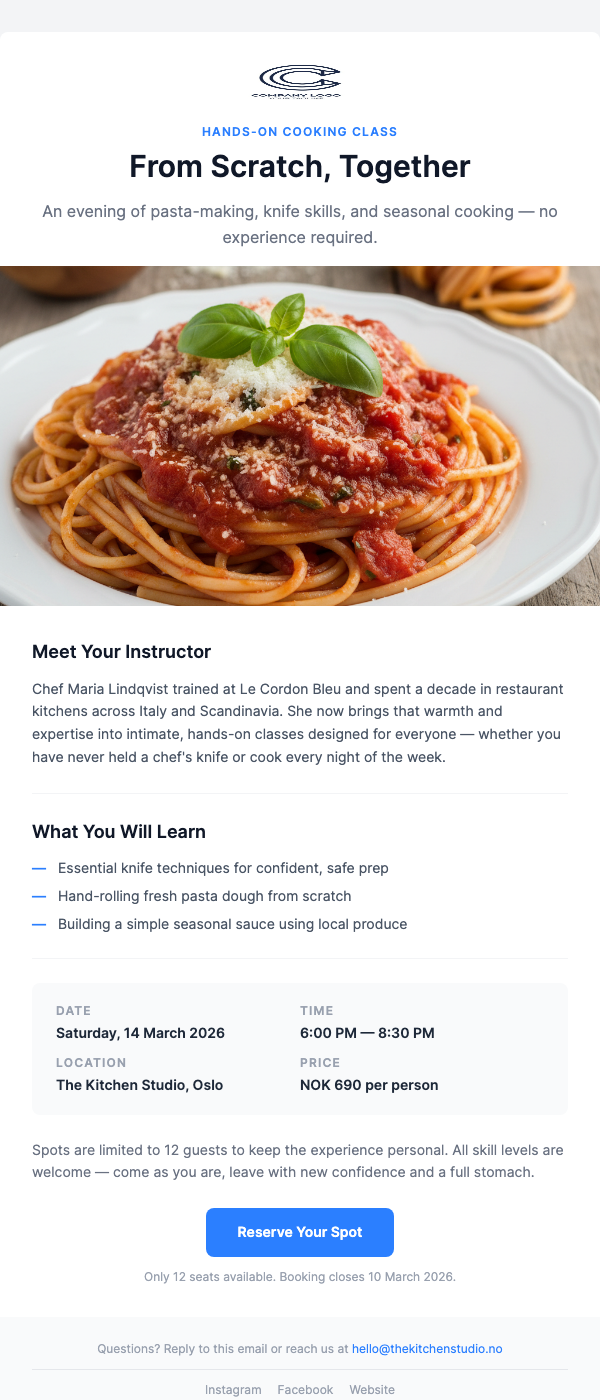
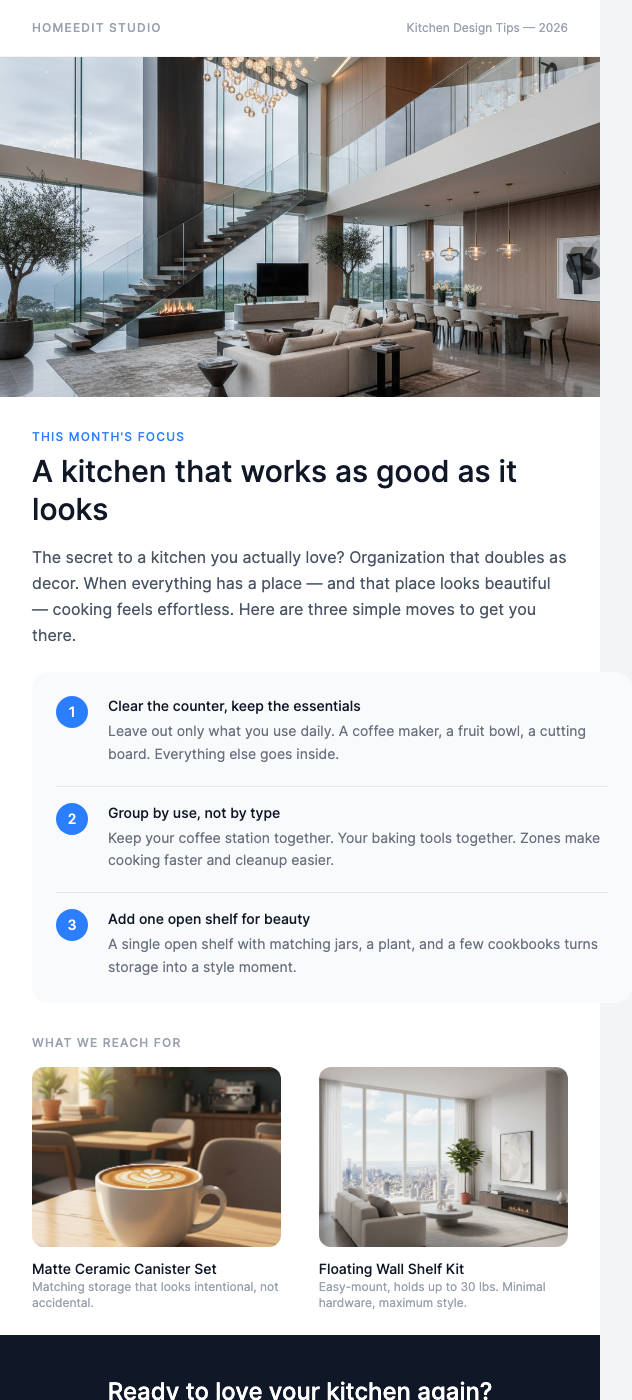
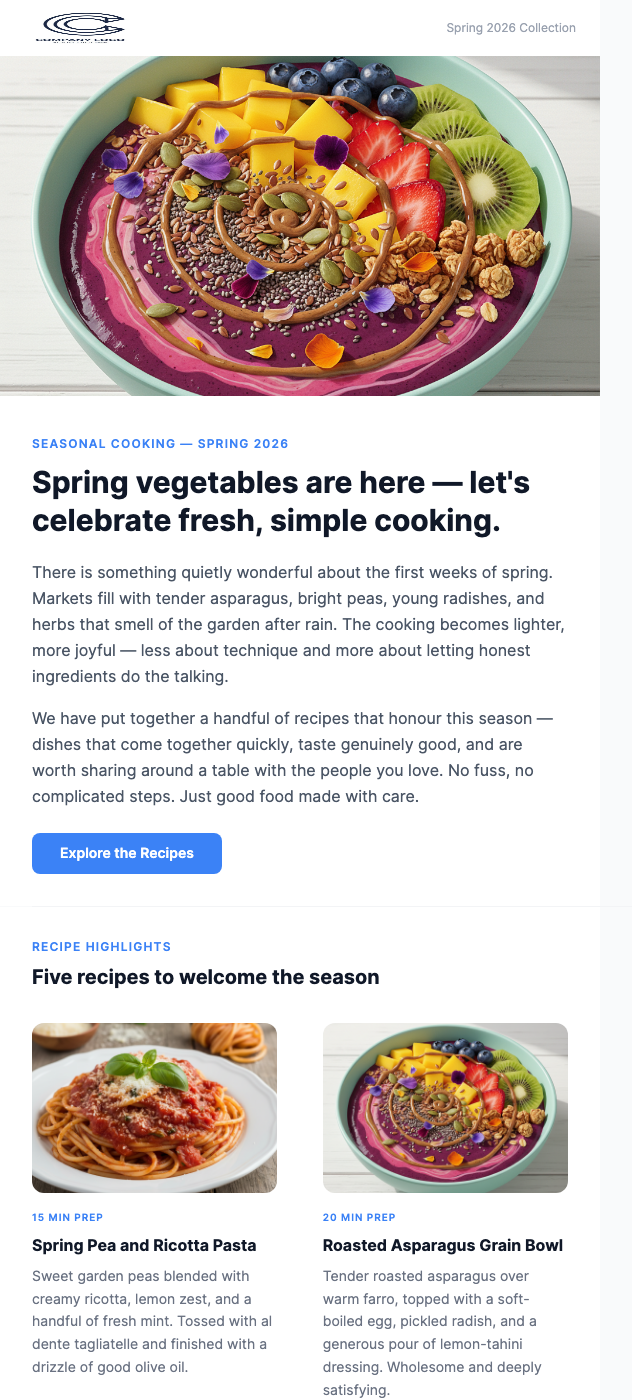
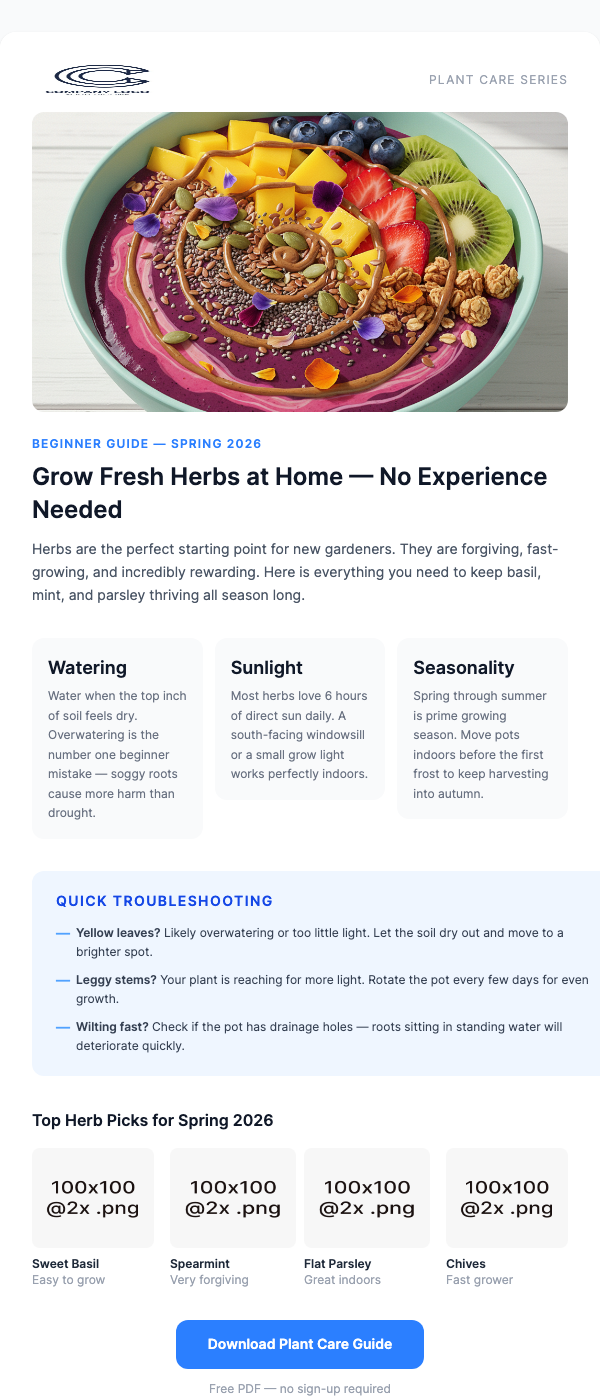
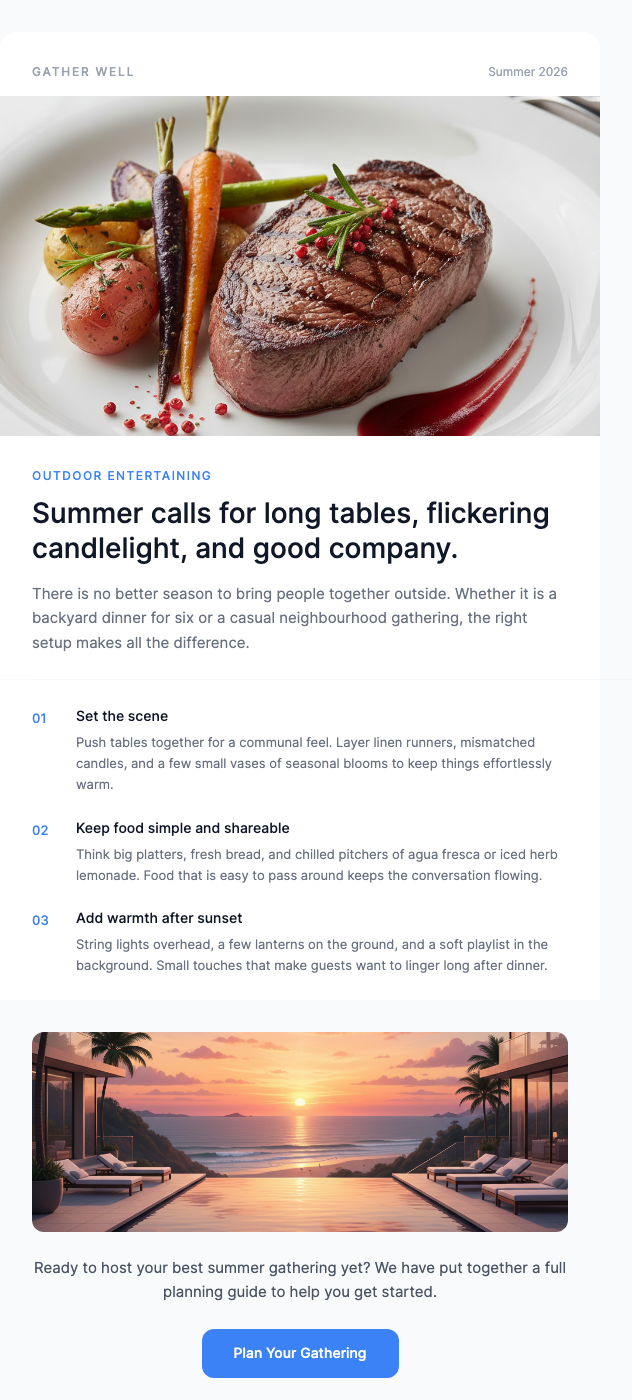
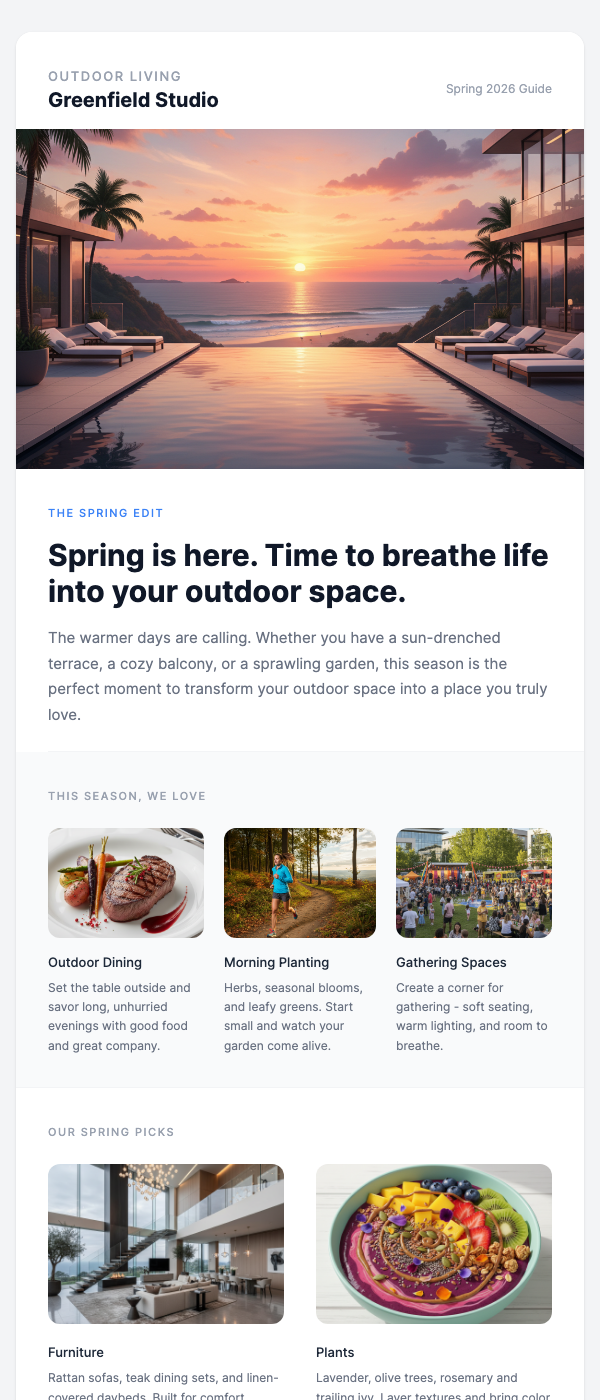
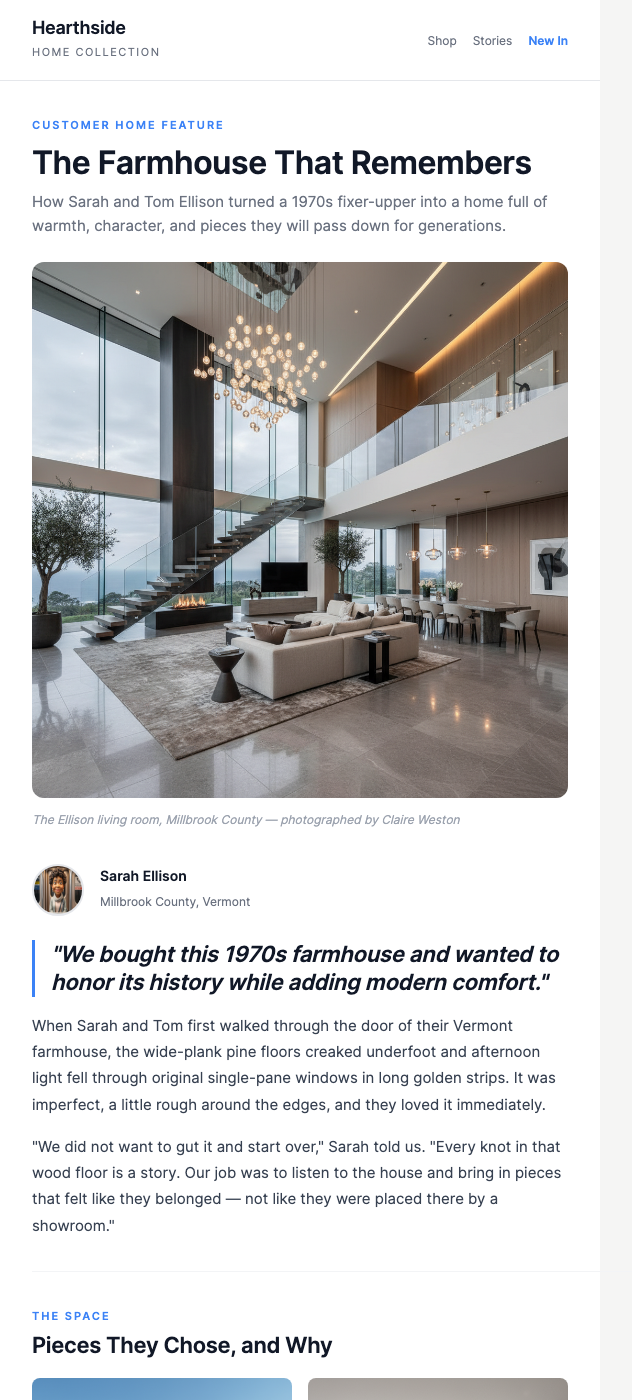
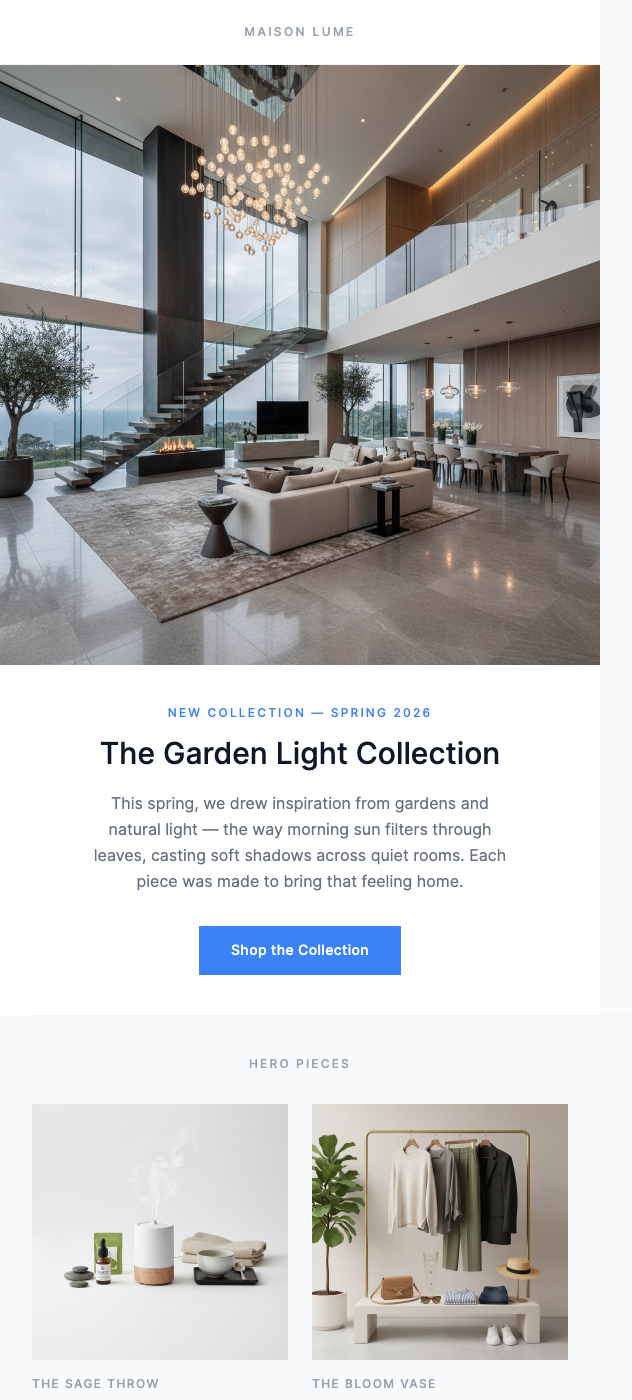
Free HubSpot-Ready Templates
All HTML — copy, paste into HubSpot, send.
Why Use EmailBits Templates with HubSpot?
Inline styles, Outlook-safe
HubSpot sends to enterprise inboxes where Outlook is common. EmailBits uses inline CSS throughout — no external stylesheets stripped by Outlook. Your email renders correctly for every contact.
Add HubSpot tokens after copying
EmailBits templates are plain HTML. After pasting into HubSpot, add {{ contact.firstname | default('there') }} and other HubSpot personalization tokens directly in HubSpot's editor.
600+ free, zero sign-up
Browse the entire free library and copy code without creating an account. Sign up only if you want to save templates or access premium designs.
Brand kit for consistent HubSpot sends
Pro plan: enter your URL and EmailBits auto-detects your brand colors and logo. Apply them across templates before copying — consistent branding across all your HubSpot marketing and sales emails.
Premium Templates
139 additional premium designs — $49 one-time.
Ready to send better HubSpot emails?
Browse 600+ free HTML email templates. Copy, paste into HubSpot, send. No account required.
Browse Free Templates