Email Design Examples: What Good HTML Email Looks Like
Real email design examples broken down by type — what makes them work, the specific layout and copy decisions, and free templates inspired by each approach.
Posted by
 Cory Trimm
Related reading
Email Components: Build Better Emails Faster
What email components are, why modular email design saves time, and how the EmailBits free component library works. With real examples of reusable email sections.
Welcome Email Templates: Examples & Best Practices
Free welcome email templates for SaaS, e-commerce, and newsletters. Plus best practices for subject lines, timing, and what every welcome email needs to include.
E-commerce Email Templates: Free Examples for Every Flow
Free HTML email templates for e-commerce — cart abandonment, order confirmations, shipping updates, win-back campaigns, and promotional emails. Copy-paste ready.
Most email design advice stays abstract — "use white space," "keep it simple," "one CTA." Useful principles, but they're easier to apply when you can see them in action. This guide breaks down specific email design patterns by type: what the structural decisions are, why they work, and what to take from them.
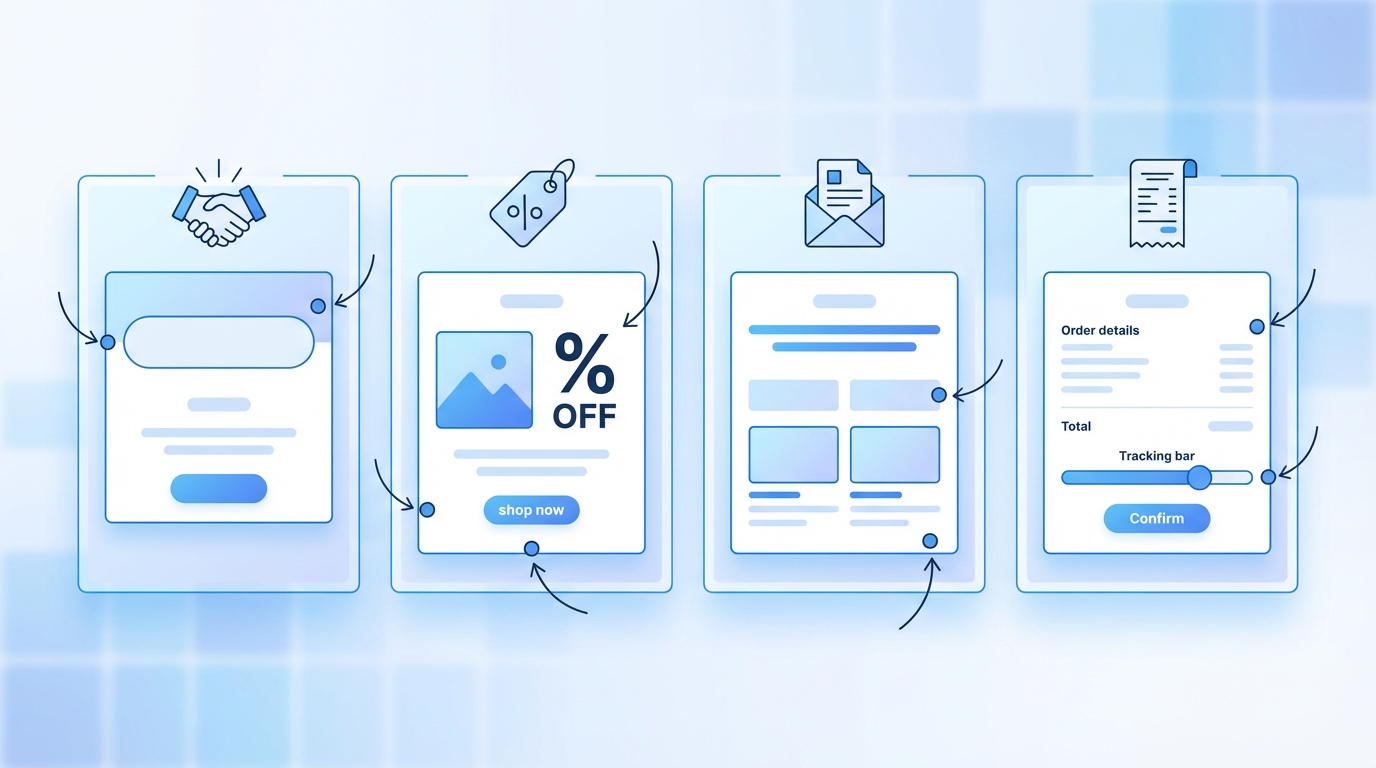
Welcome Email: The Warm Minimal
The strongest welcome email designs share a counterintuitive quality: they use less than you'd expect. A large, centered logo. A single headline. Two or three sentences. One button.
Why it works: At the moment of signup, the user is already engaged — they just gave you their email. You don't need to sell them again. The minimal design mirrors the emotional state: calm, clear, welcoming. Heavy design at this moment can feel transactional when the user is expecting something personal.
The design decisions:
- Logo centered, not left-aligned. Feels less like a business header, more like a personal letter.
- Headline in a large, readable weight: "Welcome to [Product]. Your account is ready." Not creative. Explicit.
- CTA button is the widest element on the page — impossible to miss, easy to tap on mobile.
- No product screenshots, feature grids, or pricing tables. Those come later.
Onboarding variant: the numbered steps
When a welcome email needs to explain what to do next, a numbered steps layout works better than prose. Three steps maximum: "1. Set up your profile. 2. Connect your first integration. 3. Invite your team." Each with an icon, a headline, and one line of supporting copy.
This layout works because it makes the onboarding task feel finite and achievable. A paragraph explaining the same three steps feels like reading a manual.
Promotional Email: The Bold Hero
The best promotional email design concentrates attention on a single offer. The hierarchy is: offer headline → product visual → CTA → supporting details. Everything else is secondary.
Why it works: Promotional emails have seconds to make an impression before the reader scrolls past. A bold, high-contrast hero section with the offer immediately visible above the fold captures attention before the reader makes the "is this relevant?" decision.
The design decisions:
- Brand color as background, white text — high contrast, immediately recognizable.
- The discount or offer is the largest text in the email: "40% off." Not the product name, not the headline — the offer.
- Product images below the fold, organized as a 2 or 3-column grid. Let the offer drive the open; let the products drive the click.
- A genuine expiry date in smaller text below the CTA. Not "offer ends soon" — a specific date.
Transactional Email: Clarity Over Design
Order confirmations and receipts are not the place for brand expression. The reader wants information, not design. The best transactional email designs prioritize structure and scannability over visual richness.
The design decisions:
- Order number at the very top — in the subject line and the first line of the email. This is what customers copy-paste into support tickets and search for in their inbox.
- Item list as a clean table: product name, quantity, price. No decorative borders or complex table styling — just clean rows that are easy to read.
- Subtotal, shipping, tax, and total in a summary block below the table. Use bold for the total amount.
- "Need help?" prominently in the footer — link to support, not buried in small text.
A common mistake in transactional email design: trying to make it look like a marketing email. A receipt that has a promotional banner in the hero section feels wrong — the reader is in receipt-reading mode, not shopping mode.
Newsletter Email: Scannable Sections
The best newsletter designs are built for two reading modes: skimming and reading. A first-pass skimmer should be able to understand what's in the issue from the headlines alone. A reader who stops at an item should get the full context without hunting.
The design decisions:
- Section headings in a distinct visual style — a different font weight, a colored label, or a horizontal rule above. Make the structure visible.
- Each section: headline, 2–4 sentences, one link. Nothing more. The link is the CTA; the section is the pitch for why to click it.
- Consistent spacing between sections. The white space between items is what makes individual sections feel like distinct units rather than a continuous block of text.
- A brief "table of contents" intro for longer issues — a sentence or two at the top that previews what's inside. Reduces abandonment for readers who scan before committing.
Feature Announcement: Show, Don't Tell
Feature announcement emails that show the feature — a screenshot, a GIF, a comparison — outperform those that only describe it. The reader should understand what the feature looks like and how it works before they click through.
The design decisions:
- Lead with the problem solved, not the feature name. "Sending the same email template to multiple ESPs used to mean rebuilding it each time" lands better than "Introducing: Multi-ESP Export."
- A product screenshot or GIF as the hero image. Place it high in the email, not below the fold. The visual carries more persuasive weight than the copy.
- 3 bullet points for the key capabilities — not a paragraph. Bullets are easier to scan at a glance.
- One CTA: "Try it now" or "See how it works." A second CTA for a demo or docs can appear in a secondary, less prominent position.
The Common Thread: Hierarchy and Restraint
Every good email design example shares two qualities: clear hierarchy and restraint. Hierarchy means the reader never has to think about what to look at next — the design guides the eye from the most important element to the least. Restraint means removing everything that doesn't serve that hierarchy.
The most common email design failure is not bad design — it's too much design. Too many sections, too many CTAs, too much copy. The email tries to do everything and ends up doing nothing well. The fix is almost always subtraction.
Free Templates Across Every Format
EmailBits has 600+ free email templates across all the design types covered in this guide — minimal welcome emails, bold promotional layouts, clean transactional receipts, scannable newsletters, and feature announcement formats. Every template includes HTML and JSX, and every one is built with the same design principles described here: table-based layout, inline styles, clear hierarchy, restrained copy.
Browse without an account. Copy the HTML or JSX directly. No drag-and-drop, no export step.
Frequently Asked Questions
What makes an email design "good"?
Good email design is functional first: the reader should understand immediately what the email is about, what they're being asked to do, and how to do it. Aesthetic quality matters, but it's secondary to clarity. An email can be beautiful and still fail if the CTA isn't obvious or the key information is buried.
Should I use images or keep emails text-only?
It depends on the email type. Promotional, product, and newsletter emails benefit from images — they increase visual interest and can communicate faster than copy. Transactional and personal emails (welcome, onboarding check-ins) often perform better with minimal or no images. Always include alt text on every image in case they're blocked.
How do I apply these design patterns to my own emails?
Start from a template that matches your email type, then apply the principles in this guide as you customize: reduce to one primary CTA, cut body copy by 30%, make the most important information the most visually prominent. The fastest path is to copy a well-designed template from EmailBits and replace the content rather than designing from scratch.