Email Personalization: The Complete Guide
How to personalize email with merge tags, dynamic content, and custom tokens. Covers Mailchimp, Klaviyo, HubSpot syntax — and how EmailBits Custom Tokens work.
Posted by
 Cory Trimm
Related reading
Email Components: Build Better Emails Faster
What email components are, why modular email design saves time, and how the EmailBits free component library works. With real examples of reusable email sections.
Welcome Email Templates: Examples & Best Practices
Free welcome email templates for SaaS, e-commerce, and newsletters. Plus best practices for subject lines, timing, and what every welcome email needs to include.
E-commerce Email Templates: Free Examples for Every Flow
Free HTML email templates for e-commerce — cart abandonment, order confirmations, shipping updates, win-back campaigns, and promotional emails. Copy-paste ready.
Personalized emails get higher open rates, higher click-through rates, and feel less like broadcast messages. But "personalization" means different things depending on where you are in the stack — the ESP sending the email, the template editor you're using, or the codebase rendering it server-side.
This guide covers the full picture: terminology, basic merge tags with proper fallbacks, ESP-specific syntax, EmailBits Custom Tokens, and where dynamic content blocks fit in. Whether you're sending through Mailchimp, Klaviyo, or a custom Node.js setup, the same principles apply.
Terminology: Merge Tags, Variables, and Tokens
These terms are often used interchangeably, but they mean slightly different things:
- Merge tags are the ESP-specific syntax for inserting subscriber data into an email at send time. Mailchimp uses
*|FNAME|*. Klaviyo uses{{ first_name }}. HubSpot uses{{ contact.firstname }}. The ESP replaces the tag with the actual value from your contact list when the email is sent. - Template variables are placeholders in code-based templates (typically JSX or server-rendered HTML) that are filled in at render time by your application. Common in transactional email setups with React Email, Resend, or Nodemailer.
- Custom Tokens (in the EmailBits context) are reusable placeholders you define in your account — like your brand color, company name, or website URL — that are substituted across all your templates before you copy the code. They save the step of manually find-and-replacing placeholder values every time you use a template.
Basic Personalization: Always Include a Fallback
The most common personalization mistake is using a merge tag without a fallback value. If a subscriber's first name isn't in your list, an email that starts with "Hi *|FNAME|*," sends as "Hi ," — which looks broken and unprofessional.
Every major ESP supports fallback syntax. Use it on every personalization field:
Mailchimp
*|FNAME:Hello there|* — renders as the first name if available, or "Hello there" if the field is empty.
Klaviyo
{{ first_name | default: 'there' }} — Klaviyo uses Jinja2 syntax with a default filter. This renders the first name or falls back to "there", producing "Hi there" as a safe fallback.
HubSpot
{{ contact.firstname | default('there') }} — HubSpot uses similar Jinja-style syntax with a default function.
React Email / Node.js templates
In code-based templates, use a JavaScript fallback: ${firstName || 'there'} in template literals, or a prop with a default value in a React component.
ESP-Specific Merge Tag Reference
Each major ESP uses different syntax for the same subscriber fields. Here's a quick reference for the most common personalization fields:
Mailchimp merge tags
*|FNAME|*— First name*|LNAME|*— Last name*|EMAIL|*— Email address*|COMPANY|*— Company (if collected)*|UNSUB|*— Unsubscribe link (required)*|DATE:format|*— Current date with format string
Klaviyo variables
{{ first_name }}— First name{{ last_name }}— Last name{{ email }}— Email address{{ organization }}— Company/organization{{ event.item_name }}— Event property (for flow triggers)
HubSpot tokens
{{ contact.firstname }}— First name{{ contact.lastname }}— Last name{{ contact.email }}— Email address{{ contact.company }}— Company name{{ owner.first_name }}— Contact owner name (useful for sales sequences)
ActiveCampaign personalization tags
%FIRSTNAME%— First name%LASTNAME%— Last name%EMAIL%— Email address%ORGNAME%— Organization name
EmailBits Custom Tokens: Reusable Template Variables
EmailBits Custom Tokens solve a different problem than ESP merge tags. Where merge tags insert subscriber data at send time, Custom Tokens let you define reusable values at the template level — your brand color, your website URL, your company name, your support email — and substitute them across every template you use.
This is useful when:
- You use multiple templates and want your brand name, colors, or contact details consistent everywhere without manually editing each one.
- You're managing templates for a client and want to define their brand variables once and apply them across all templates in one step.
- Your brand details change (new URL, updated support email) and you want to update all templates at once rather than finding and replacing each occurrence.
How Custom Tokens work
In the EmailBits dashboard, define your tokens under Account Settings → Custom Tokens. Each token has a name and a value. When you open a template, the editor substitutes your token values into the template before you copy the code.
Common tokens to define:
{{brand_name}}→ Your company name{{brand_color}}→ Your primary hex color{{website_url}}→ Your homepage URL{{support_email}}→ Your support email address{{logo_url}}→ Your hosted logo image URL
Brand Kit: Auto-Detect from Your URL
For Pro subscribers, the Brand Kit feature automates token setup. Enter your website URL and EmailBits scans your site to detect your primary brand colors, fonts, and logo URL. These are applied as defaults across your templates — so every template you open already reflects your brand without any manual setup.
Brand Kit pairs well with Custom Tokens: use Brand Kit for visual properties (colors, logo) and Custom Tokens for text content (company name, contact details, URLs).
Dynamic Content Blocks
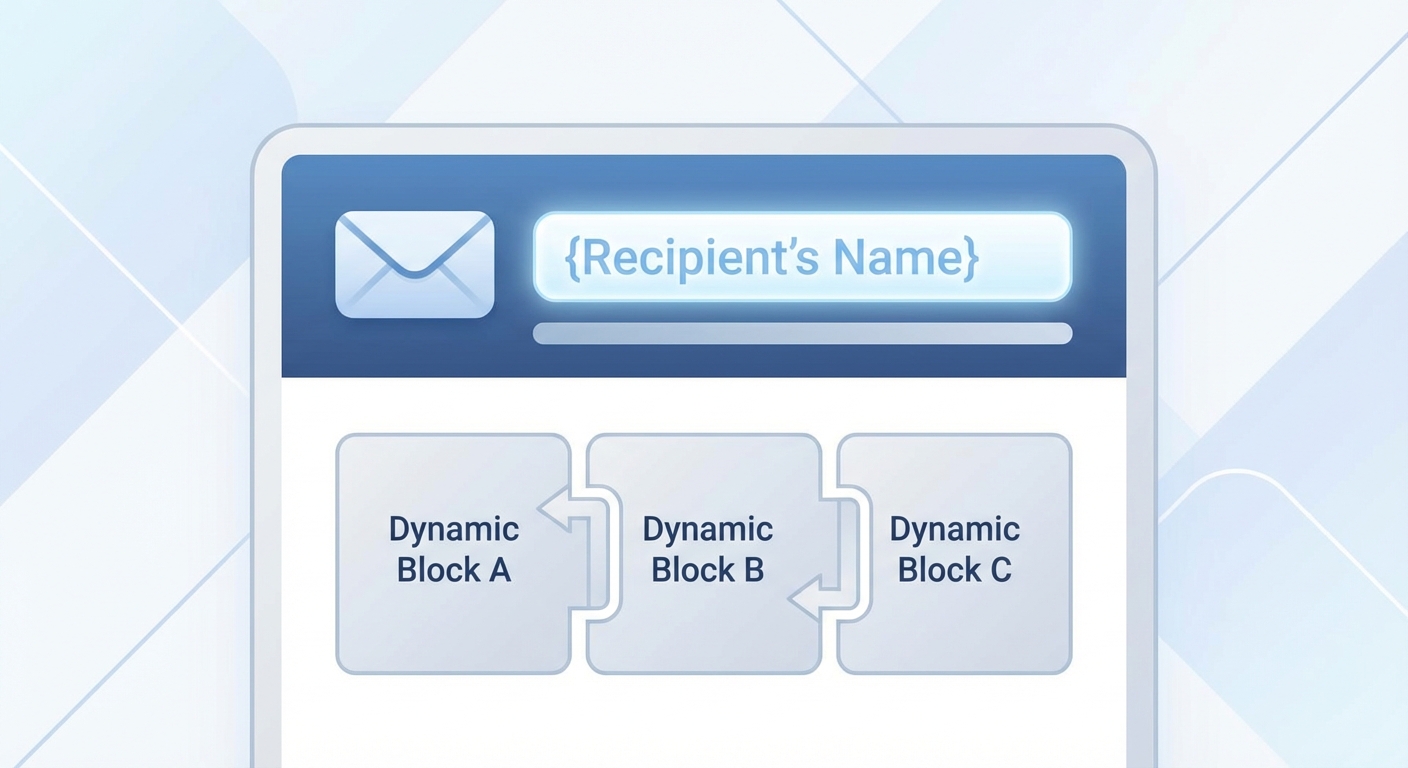
Beyond field-level personalization, most ESPs support conditional content blocks — sections of an email that show or hide based on subscriber properties.
When to use dynamic content
- Showing different product recommendations based on purchase history or browse behavior.
- Displaying location-specific offers or store information based on the subscriber's country or city.
- Changing the CTA or hero section based on customer lifecycle stage (new subscriber vs. repeat buyer vs. lapsed customer).
- Showing a loyalty tier badge or reward balance for loyalty program members.
Implementation by ESP
Klaviyo supports conditional content with {% if %}...{% endif %} blocks in their email editor, using the same Jinja2 syntax as variable tags. Mailchimp uses conditional merge block syntax: *|IF:FIELD=value|*...*|END:IF|*. HubSpot has a visual content editor for conditional sections that doesn't require writing syntax directly.
For code-based templates (React Email, Nodemailer), dynamic content is just conditional JSX or string interpolation — standard JavaScript, no special syntax.
Personalization Mistakes to Avoid
- No fallback on merge tags. Always define a default value for every personalization field. "Hi ," is worse than "Hi there,".
- Over-personalizing. Mentioning the subscriber's name five times in one email feels algorithmic, not personal. Use it once in the greeting; let the relevance of the content do the rest.
- Using stale data. Personalizing with data that's months old (an old job title, a past purchase from two years ago) can feel off or even jarring. Make sure the fields you're pulling are actively maintained.
- Broken tokens in test sends. Always send a test to a real inbox before sending to your list. Check that all merge tags resolve correctly and no raw tag syntax appears in the rendered email.
- Ignoring the subject line. First-name personalization in the subject line has a measurable impact on open rates for many audiences. Don't limit personalization to the email body.
Using Personalization with EmailBits Templates
EmailBits templates are plain HTML — there's no ESP-specific syntax built in. That's intentional: you add merge tags for your specific ESP after copying the template code.
The workflow is:
- Open a template in EmailBits. If you have Brand Kit and Custom Tokens set up, apply them first.
- Copy the HTML code from the HTML tab.
- Paste into your ESP's HTML editor.
- Replace placeholder text (like "First Name" in the greeting) with your ESP's merge tag syntax.
For code-based setups (React Email, Resend), copy the JSX from the JSX tab and add props for any variable content — first name, order details, custom URLs — before passing the rendered component to your sending library.
Frequently Asked Questions
What's the difference between merge tags and dynamic content?
Merge tags insert a single value (like a name or email address) into a specific spot in the email. Dynamic content shows or hides entire blocks of the email based on a condition. Both personalize the email — merge tags at the field level, dynamic content at the section level.
Do EmailBits templates support merge tags?
EmailBits templates are plain HTML — they don't have ESP-specific syntax built in. You add your ESP's merge tags (Mailchimp, Klaviyo, HubSpot, etc.) after copying the template into your ESP's HTML editor. The Custom Tokens feature handles EmailBits-level variable substitution (brand name, colors, URLs) before you copy the code.
How do Custom Tokens differ from ESP merge tags?
Custom Tokens in EmailBits are substituted at the template editing stage, before you copy the code. They're for your own brand variables — not subscriber data. ESP merge tags are substituted at send time, using data from your contact list. Both are valuable and serve different purposes.
Can I use the same EmailBits template across multiple ESPs?
Yes. Because EmailBits templates are plain HTML without any ESP-specific syntax, you can copy the same template and add Mailchimp merge tags for one send, Klaviyo variables for another, and HubSpot tokens for a third — all from the same base template.
Does personalization improve deliverability?
Indirectly, yes. Personalization increases engagement (opens, clicks), and higher engagement signals to inbox providers that your emails are wanted — which improves sender reputation over time. Personalization alone won't fix a deliverability problem, but it's a contributing factor to better long-term inbox placement.