Quick Editor vs. Advanced Editor: Which One Should You Use?
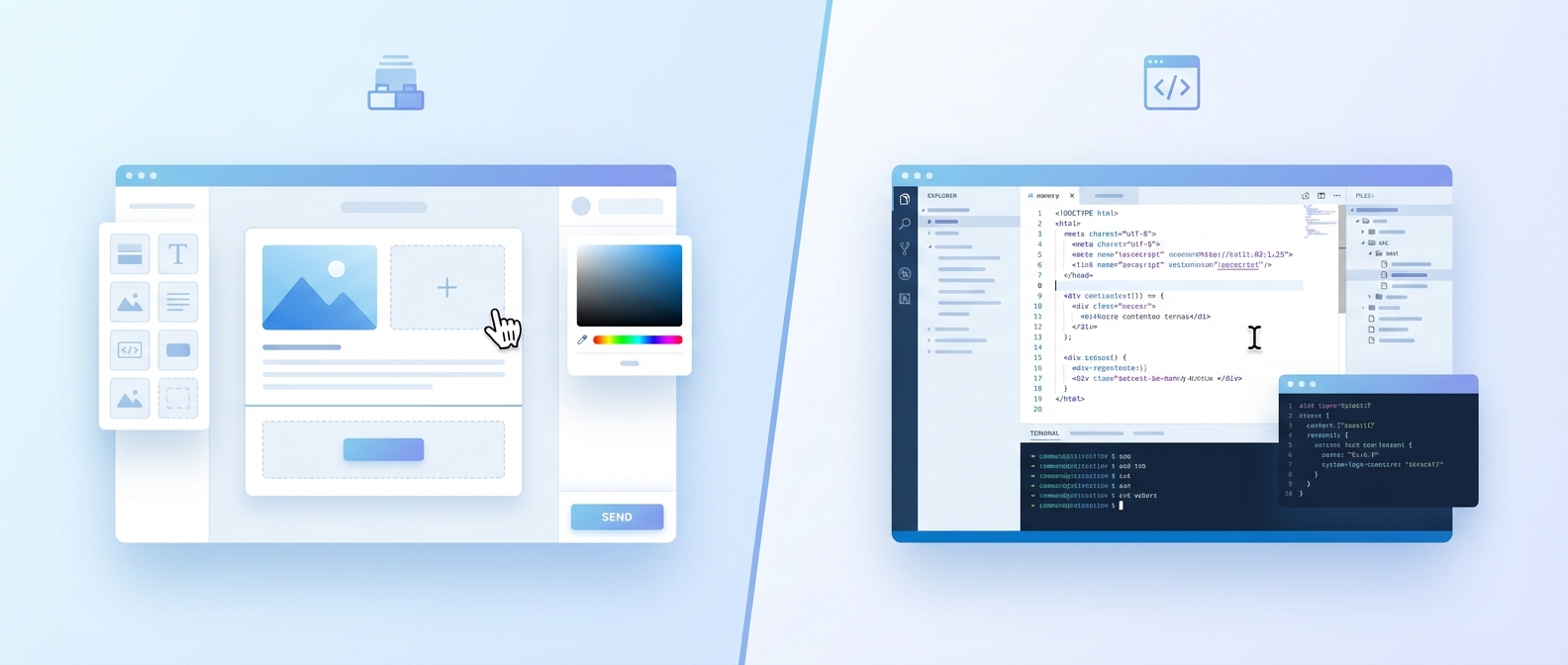
EmailBits has two built-in editors. Here's what each one does, when to use which, and why upgrading to the Advanced Editor unlocks a lot more.
Posted by
 Cory Trimm
Related reading
EmailBits 1.0: A New Chapter for HTML Email Templates
After months of building, I'm excited to share everything that's landed in the 1.0 release — 200+ templates, an AI generator, two editors, Brand Kit, and a lot more.
AI Email Template Generator: Build Emails in Minutes
Generate professional HTML email templates with AI — describe what you need, get a complete responsive template in under 2 minutes. Free to try.
Introducing Email Tokens: Personalize Your Templates Instantly
New Email Tokens feature lets you personalize email templates with your company info and custom variables.
Two Editors, Two Different Jobs
Every template on EmailBits has an Edit Template button. Click it and you land in the Quick Editor — a fast, no-login-required way to tweak the text, swap images, and download clean HTML. It's great for one-off edits.
But if you need to do more — rearrange sections, replace entire content blocks, save branded versions for reuse, or collaborate across a team — the Quick Editor runs out of road pretty fast. That's what the Advanced Editor is for.
What the Quick Editor Does
The Quick Editor extracts every editable field from a template — headings, body copy, buttons, links, and images — and presents them in a simple sidebar. You edit the fields, the preview updates in real time, and when you're done you copy or download the finished HTML.
It's ideal when you need to:
- Quickly customize a template for a one-time send
- Share a live preview link with a client
- Grab clean HTML to paste into your email platform
- Make small copy changes without touching code
No account required. Open a template, click Edit Template, make your changes, and download. Done.
Where the Quick Editor Falls Short
The Quick Editor only exposes fields that already exist in the template. You can change a headline, but you can't add a new section, remove a block you don't need, or swap in a different content component. You're editing within the template's fixed structure — not reshaping it.
There's also no concept of saving. Every session starts from scratch. If you customize a template today and need to update it next month, you start over.
What the Advanced Editor Adds
The Advanced Editor is a full editing environment built on top of the same template library. It opens when you click Edit this template from a template page (available to Pro subscribers). Here's what it unlocks:
- Drag-and-drop section reordering — move content blocks up and down to restructure the layout without touching code
- Add and remove sections — pull in any component from the library and drop it into your template, or delete sections you don't need
- Save to your library — fork any template into your personal library as a starting point you can return to and iterate on
- Brand Kit auto-fill — your company name, logo, colors, and links are applied automatically via Email Tokens so you're never filling in the same info twice
- Submit for the template library — if you build something great, you can submit your template to be featured publicly
Side-by-Side Comparison
| Feature | Quick Editor | Advanced Editor |
|---|---|---|
| Edit text & images | ✓ | ✓ |
| Real-time preview | ✓ | ✓ |
| Copy / download HTML | ✓ | ✓ |
| No login required | ✓ | — |
| Drag-and-drop sections | — | ✓ |
| Add components from library | — | ✓ |
| Save to your library | — | ✓ |
| Brand Kit auto-fill | — | ✓ |
Which One Should You Use?
If you need a quick customization and a one-time HTML export, the Quick Editor is the right tool. No friction, no account needed.
If email is a regular part of your workflow — you send multiple campaigns, maintain a brand, or build templates for clients — the Advanced Editor pays for itself immediately. The time you save not re-customizing the same template from scratch every month is worth more than the subscription.
The Quick Editor is a great starting point. The Advanced Editor is where you stay.